Performance Benchmark
Performance benchmarks help you evaluate the scalability and responsiveness of Text Generation and Image-Text-to-Text models under varying user loads. This guide shows how to create, run, and review benchmarks for deployed models that use vLLM, TGI, SGLang, TensorRT or any serving framework used with the supported inference tasks.
1. Overview
- Applicability – Only supported by Text Generation and Image-Text-to-Text models.
- Goal – Measure how a model performs (latency, throughput, etc.) under simulated real-world concurrency.
2. Accessing Performance Benchmarks
- Navigate to the Deployment page for the model you want to test.
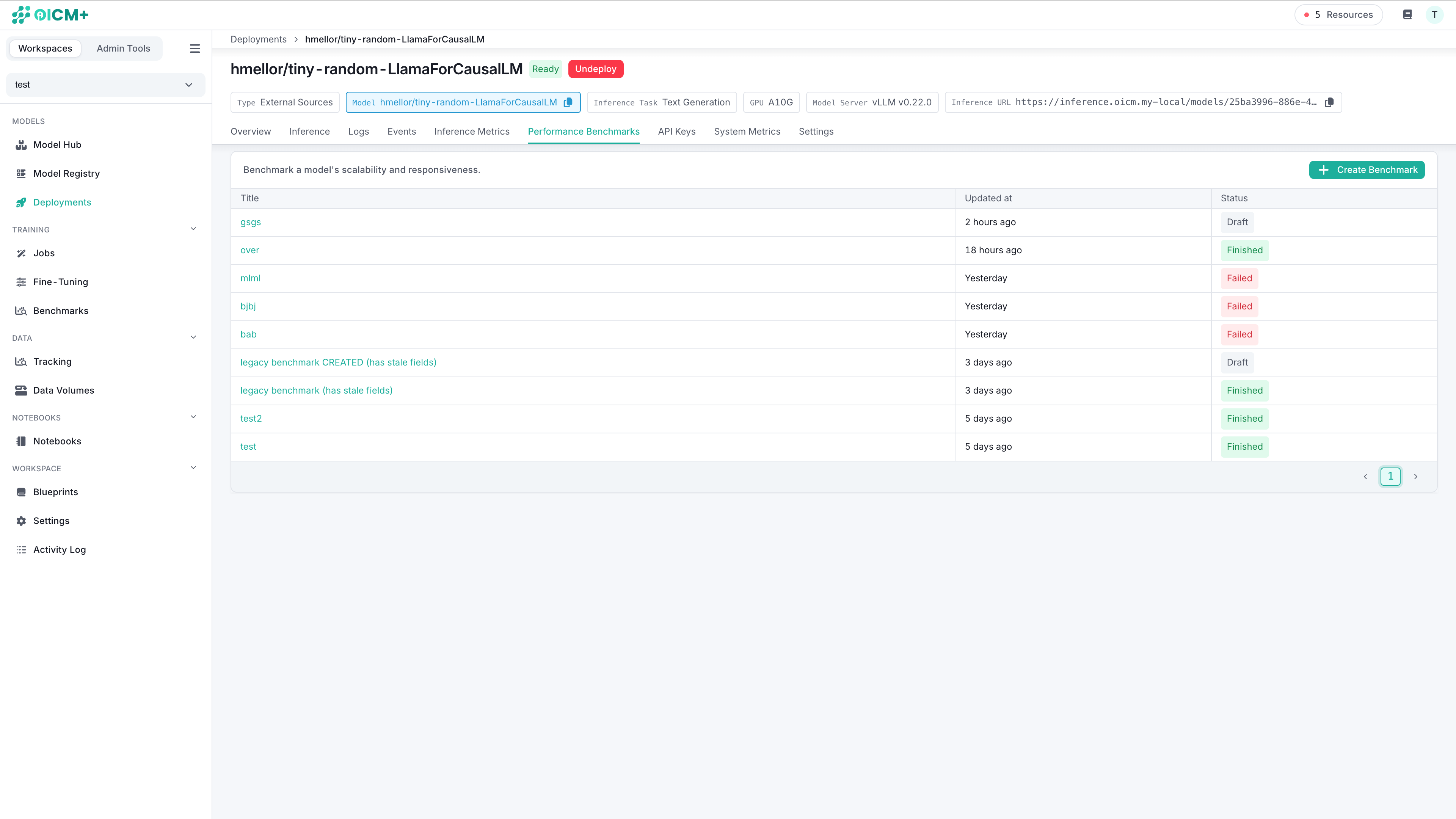
- Click on the Performance Benchmark tab to see the main view: a list of previously run benchmarks.
3. Creating a New Benchmark
- From the main view, click the Create Benchmark button.
- Enter the benchmark Title in the drawer.
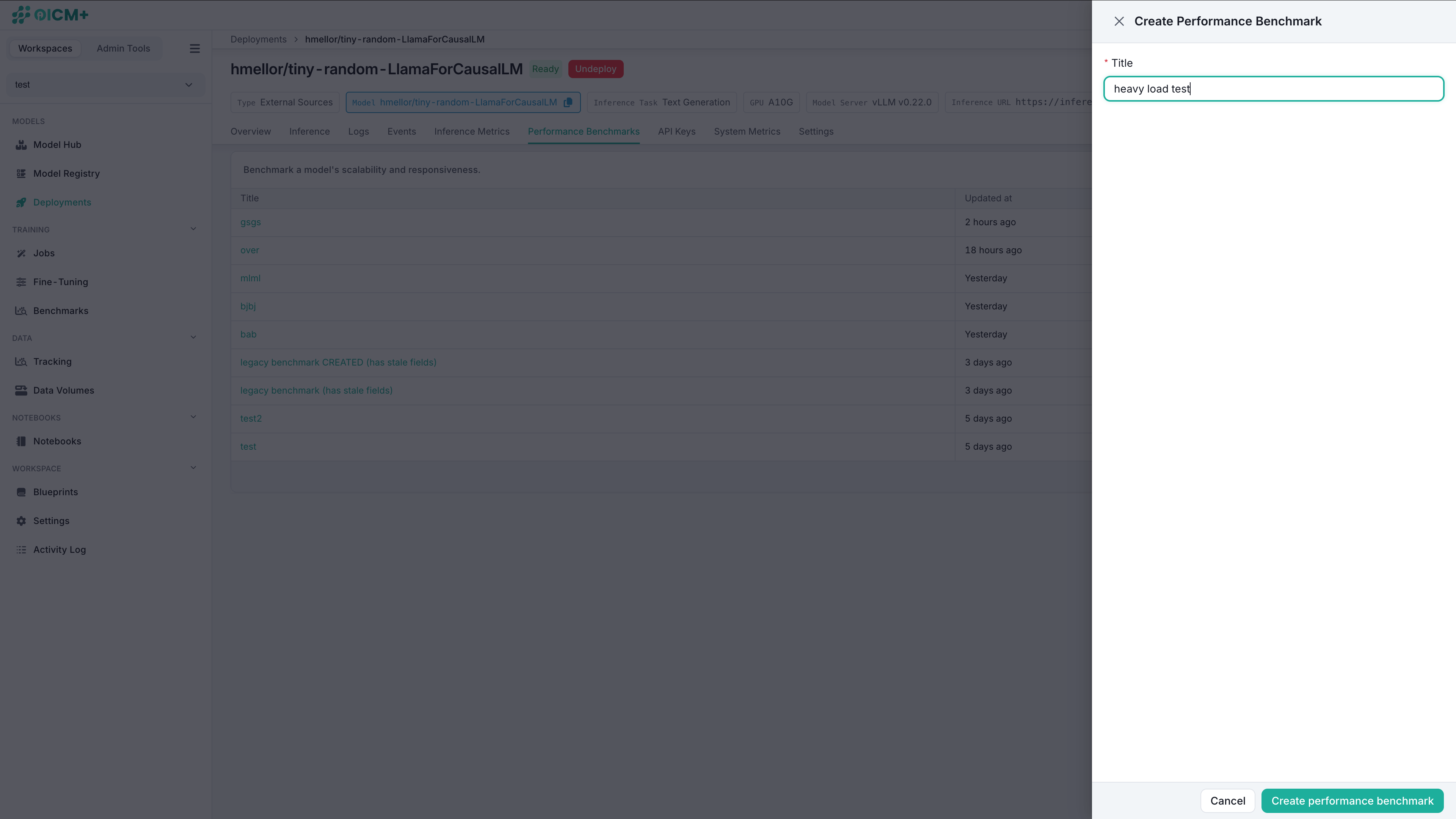
- You have now created a draft benchmark.
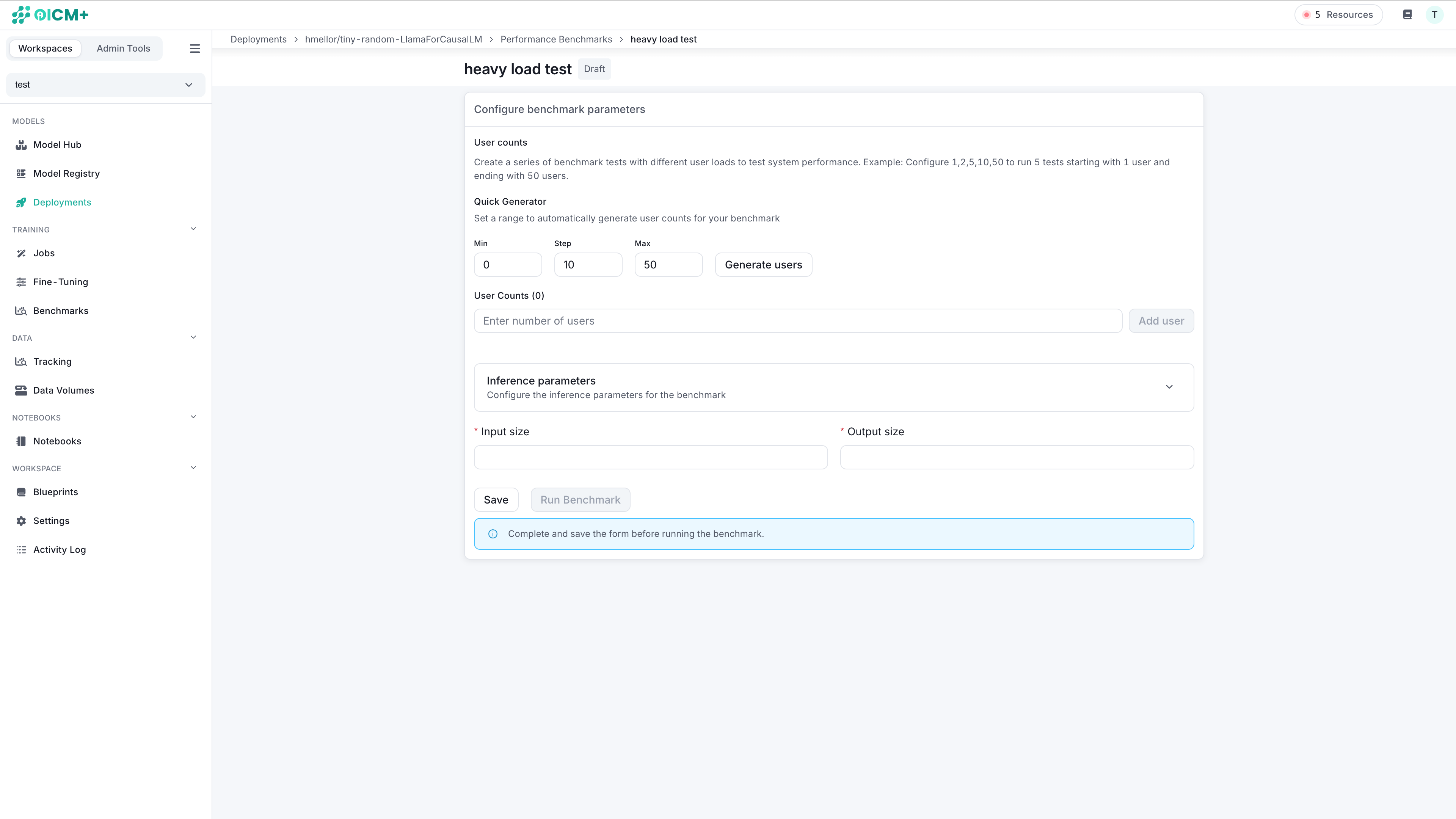
4. Completing a Draft Benchmark
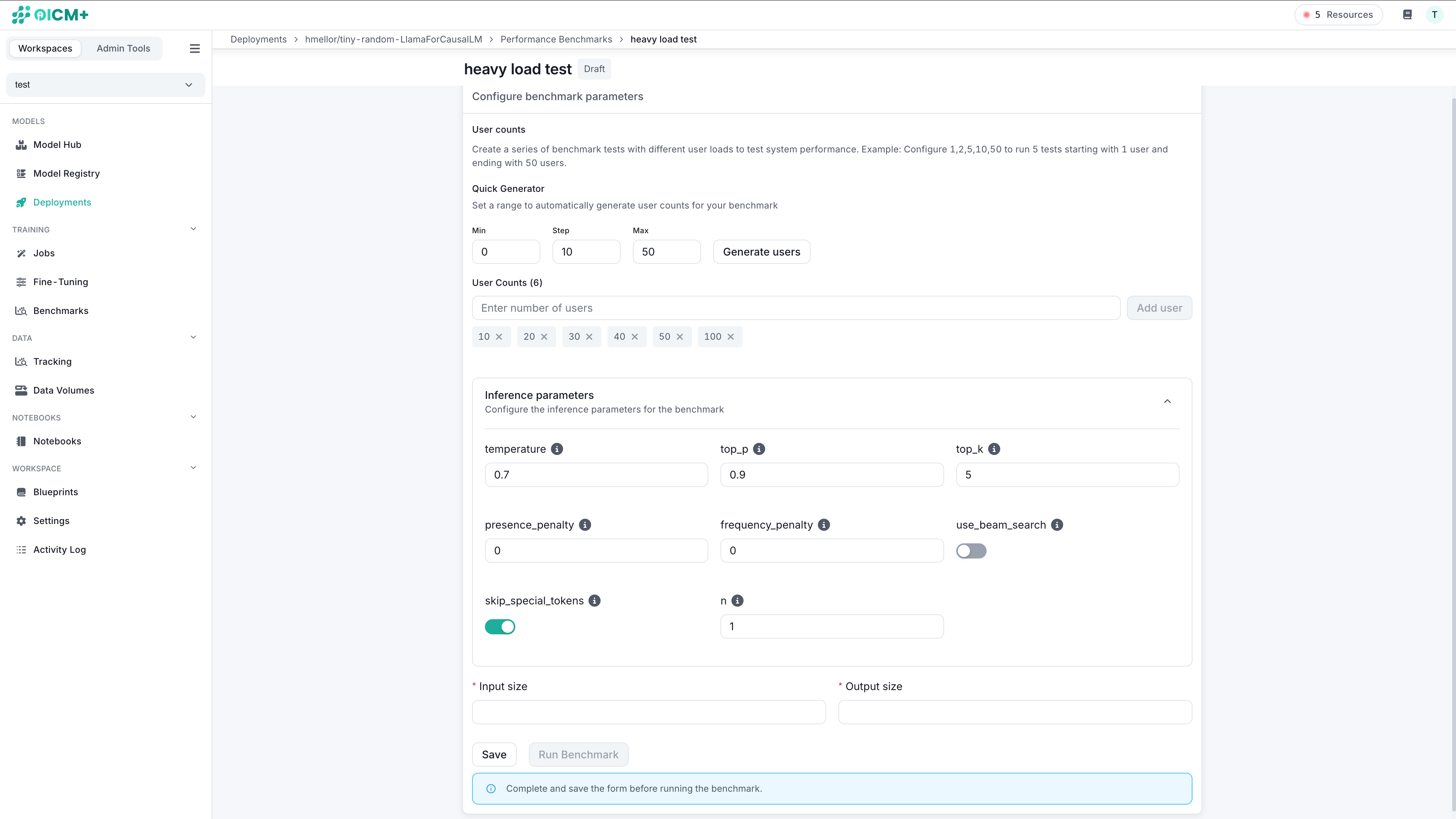
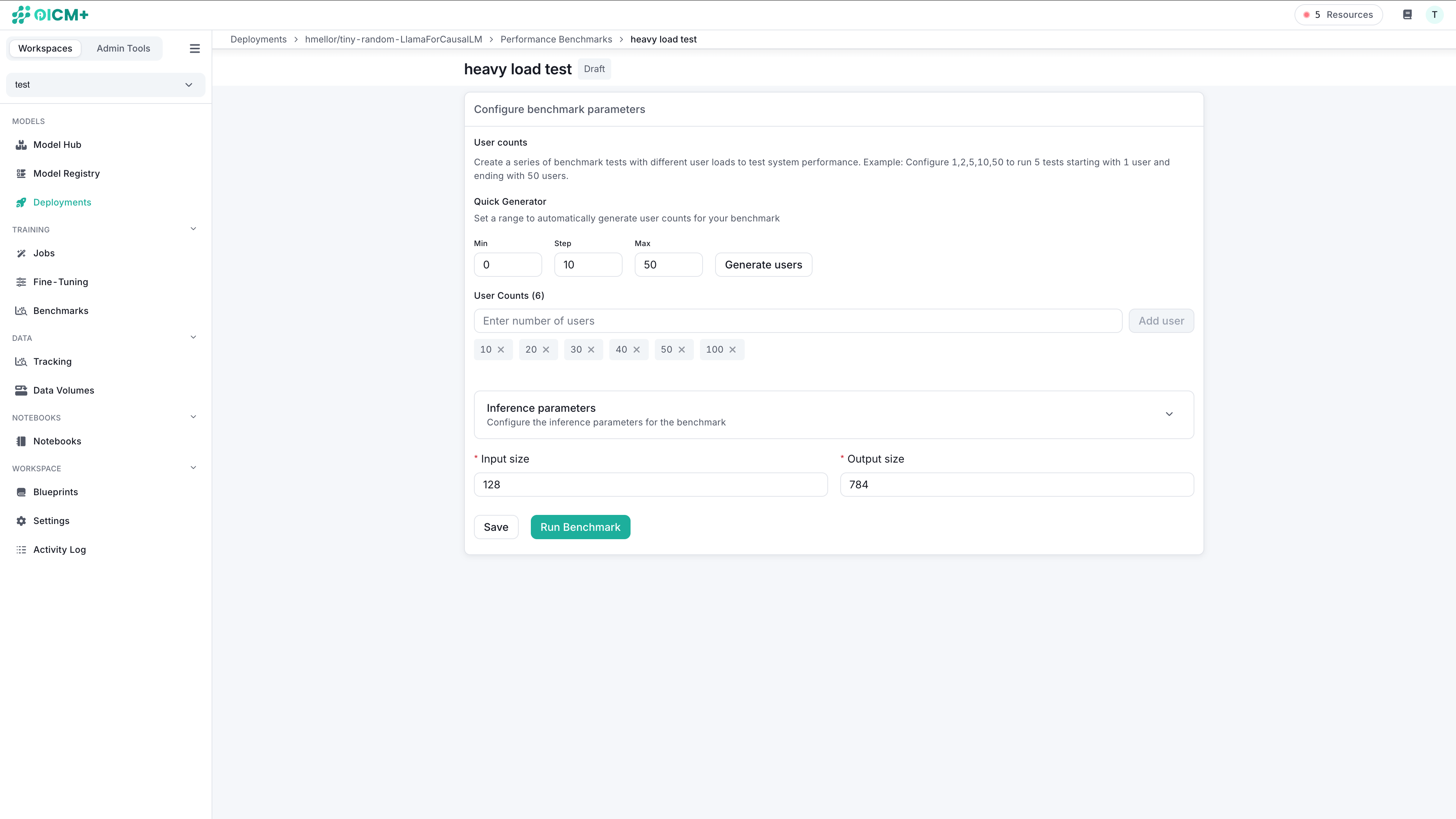
- Configuration benchmark parameters – Fill out the benchmark details to run a benchmark:
- Number of Concurrent Users – The list of user counts to benchmark against.
- To quickly add a range of user counts, enter the Min, Step, and Max counts in the Quick Generator and click Generate users.
- To add a new user count to the list, type a number into the User Counts field and click Add user (this will append to the existing list).
- Inference parameters – (Optional) Parameters to send to the model server during benchmarking.
- The available inference parameters vary between model servers.
- All requests for each number of users will be sent with the selected parameters, except
ignore_eos,max_tokens, andmin_tokens.
- Input size – The number of tokens to send to the model server.
-
Output size – The number of tokens the model server will generate.
-
Save – Save the benchmark details.
- Run benchmark – Once the benchmark details have been completed, click Run Benchmark to start the run.
5. Monitoring and Results
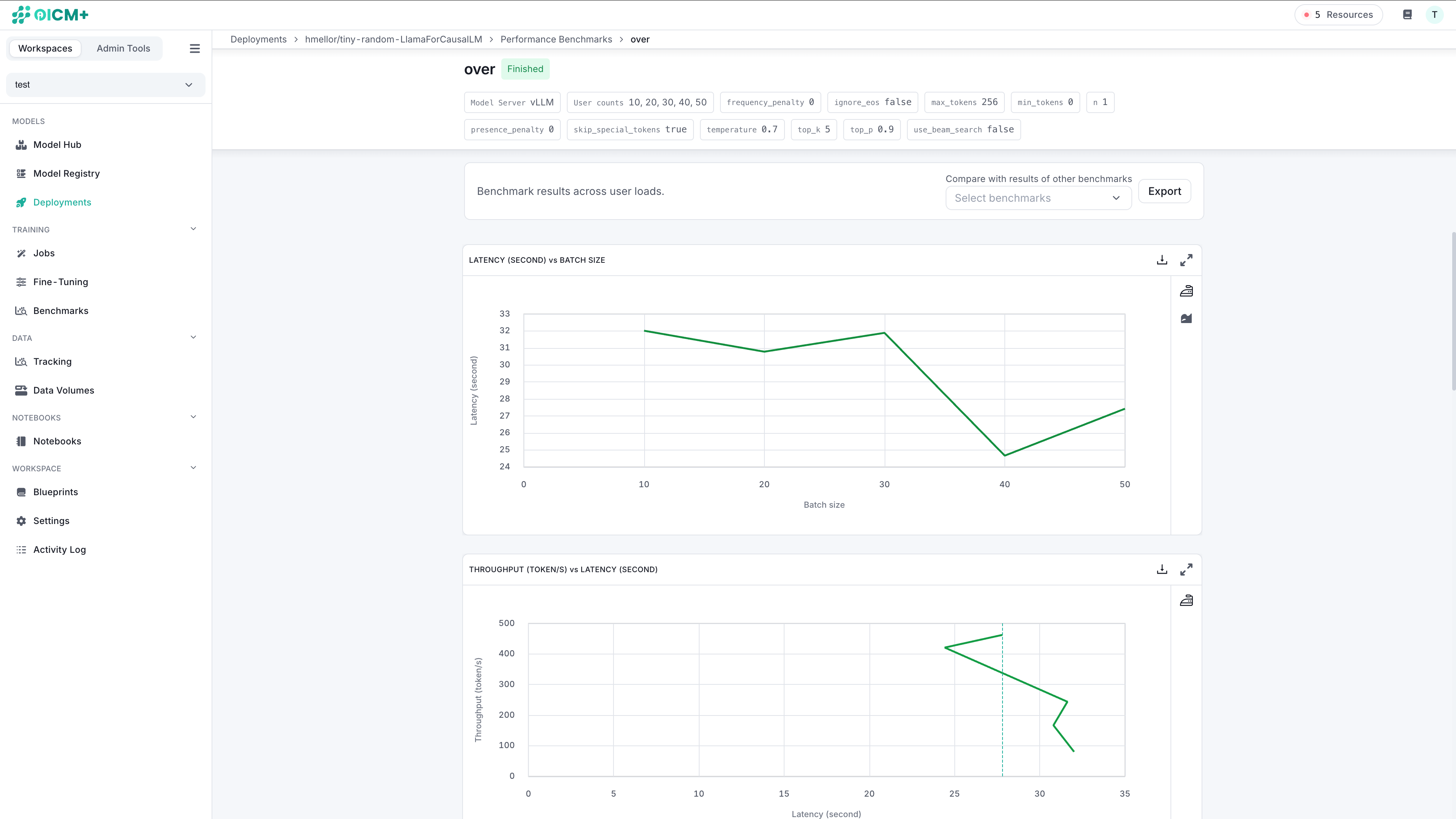
- Real-Time Monitoring – View benchmark progress in the Results Dashboard.
- Completion – Results appear automatically once the test finishes.
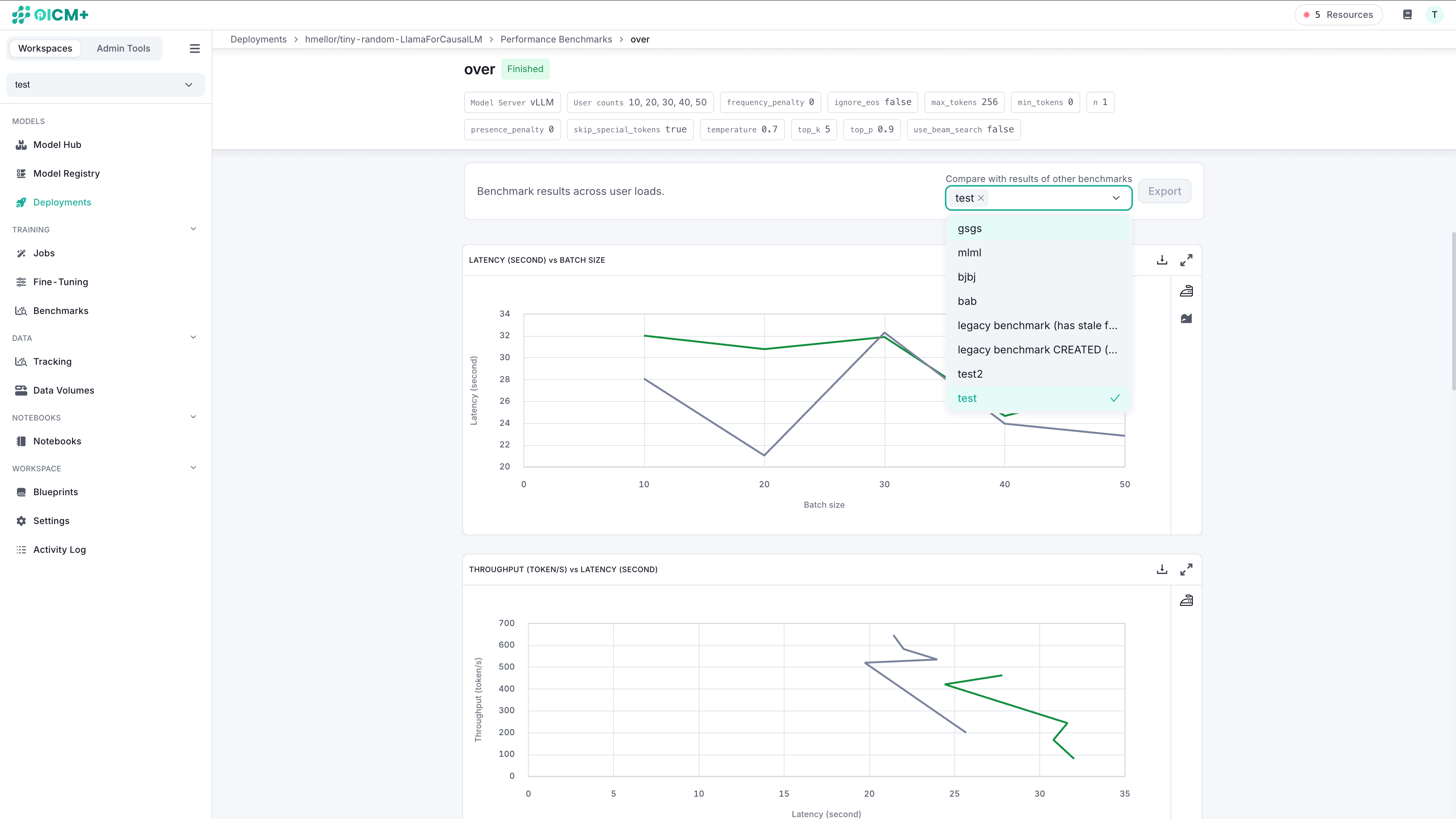
- Compare – Selecting past benchmark runs from a list and compare them with the current benchmark.
6. Exporting Results
Export benchmark data for deeper analysis or stakeholder reviews:
- PDF – Create a shareable summary report.
- Excel – Download raw data for detailed analytics.
Use these insights to optimize model settings and enhance overall performance.
Next Steps
- Deployments UI – Learn how to manage and monitor deployed models in production.
- Registered Models & Versions – Explore how to maintain multiple versions of your text generation models.